
Product Trials
Trial List
- Monitoring Android Client
- Monitoring Standard PC Client
- Monitoring WeChat Client
- Matrix Visual Android Client


Monitoring Standard PC Client Online Trial Operation Steps
1. Download the Monitoring Standard PC Client installation packageAlarm Monitoring Client.zip
2. This software requires the runtime environment to be installed first. If it is a 32-bit system, please installjdk-7u72-windows-i586.exe
; if it is a 64-bit operating system, please installjdk-7u72-windows-x64.exe
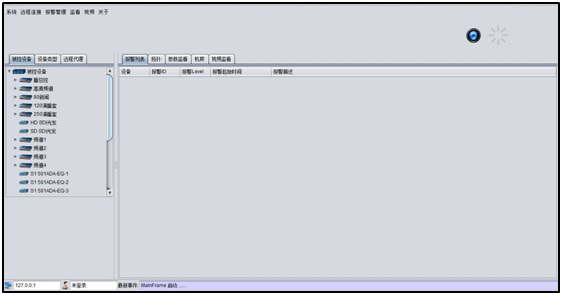
3. Extract the downloaded "Alarm Monitoring Client.zip" compressed package to obtain the Alarm Monitoring Client folder. Double-click the "NdtMcMonitorClientApp.bat" file in the "dist" folder within the folder to run the Alarm Monitoring Client, as shown below:
Note:
When running the software for the first time, the software is in the default initial state. For optimal use, please configure custom settings.
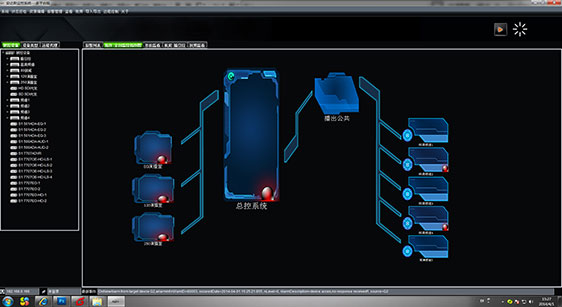
Click the "About" item in the menu bar, select "Style Settings" from the drop-down list to open the "Interface Style Settings" window. The software is equipped with multiple interface styles including "Debug Undecorated", "Dark Gray Style", "Light Blue Style", "Elegant Style", "Sichuan Mianyang Custom", "Iron Black Style", "Control Center Custom", "Flat Design Style", and others. Personally, I recommend using "Iron Black Style".
Click on the "Iron Black Style" item with the mouse, then click the "Confirm" button. Exit the software and restart it. The interface style modification is successful, and the high-end, sophisticated Iron Black style is now presented, as shown below:
4. Click the "Remote Connection" menu in the menu bar and select "Connect to Server". In the "JMS Broker Connection URL Settings" dialog window that opens, click the "Set IP" button to open the "Server IP Address Settings" dialog window. Enter the server IP address "182.92.230.125", click the "Confirm" button to close the current dialog window; click the "Confirm" button again, and the Alarm Monitoring Client will start.
5. After a successful connection, a message box will pop up prompting "Server resources downloaded successfully!". Click the "Confirm" button.
6. For the detailed operation manual, please download and refer to the "Alarm Monitoring Client Operation Manual".