
Product Trials
Trial List
- Cloud Monitoring
- Monitoring Android Client
- Monitoring Standard PC Client
- Monitoring WeChat Client
- Matrix Visual Android Client


Matrix Visual Android Client online trial operation steps
1. Download the Matrix Visual Android Client installation packageNdtRouterVisualPannelApp.apk
2. Copy the downloaded NdtRouterVisualPannelApp.apk file to the Android tablet and install it. After successful installation, an icon will be generated ; at this point, the Matrix Visual Android Client installation is complete.
The following are the parameter settings required before operation:
3. Double-tap the "Matrix Switching" icon to open the Matrix Visual Android Client. The main interface will appear first, as shown below: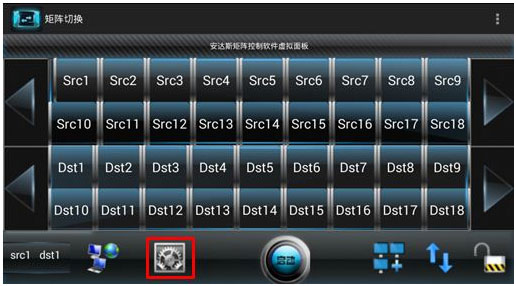
4. Tap the "Settings" button (within the red rectangle) shown above. The page will navigate to the parameter settings window, as shown below: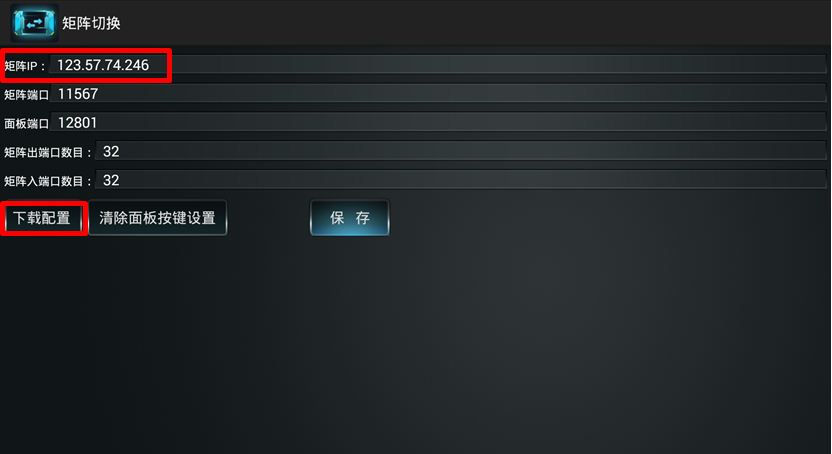
Enter the matrix server IP address in the "Matrix IP" field, then tap the "Download Configuration" button to connect to the matrix server and download its configuration parameters.
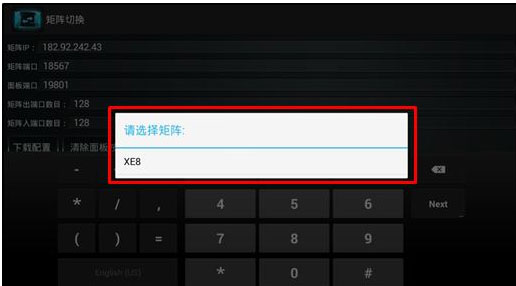
5. In the "Select Matrix" dialog that appears, select the appropriate matrix. Tap the "XE8" matrix name in the dialog, as shown below:
6. A confirmation dialog will appear to re-confirm the selected matrix name, as shown below:
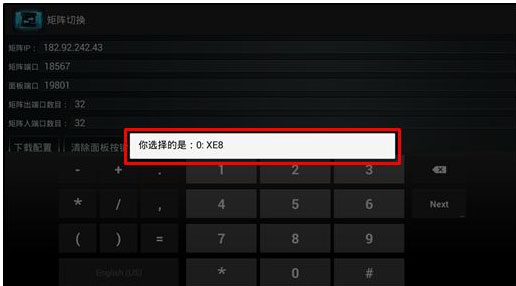
Disregard this prompt dialog; it will close automatically.
After the matrix server configuration download is complete, tap the "Save" button to save the downloaded matrix server configuration parameters and close the current "Parameter Settings" window.
7. On the Matrix Visual Android Client main interface, tap the "Start" button at the bottom center of the page, as shown below: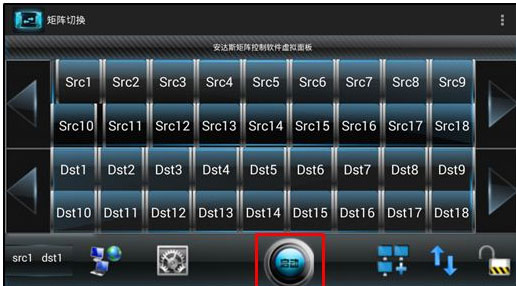
8. The Matrix Visual Android Client begins connecting to the matrix server. When the "Matrix connected successfully" prompt appears and the "Start" button is grayed out with its text changed to "Started," as shown below: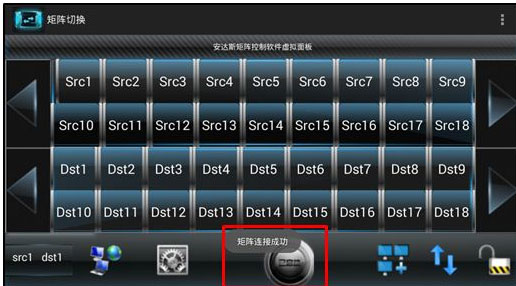
This indicates that the Matrix Visual Android Client has successfully connected to the matrix server. You can now operate the matrix through the Matrix Visual Android Client.
9. For the detailed operation manual, please download and refer to the "Matrix Visual Android Client User Manual”。